

Keybindings
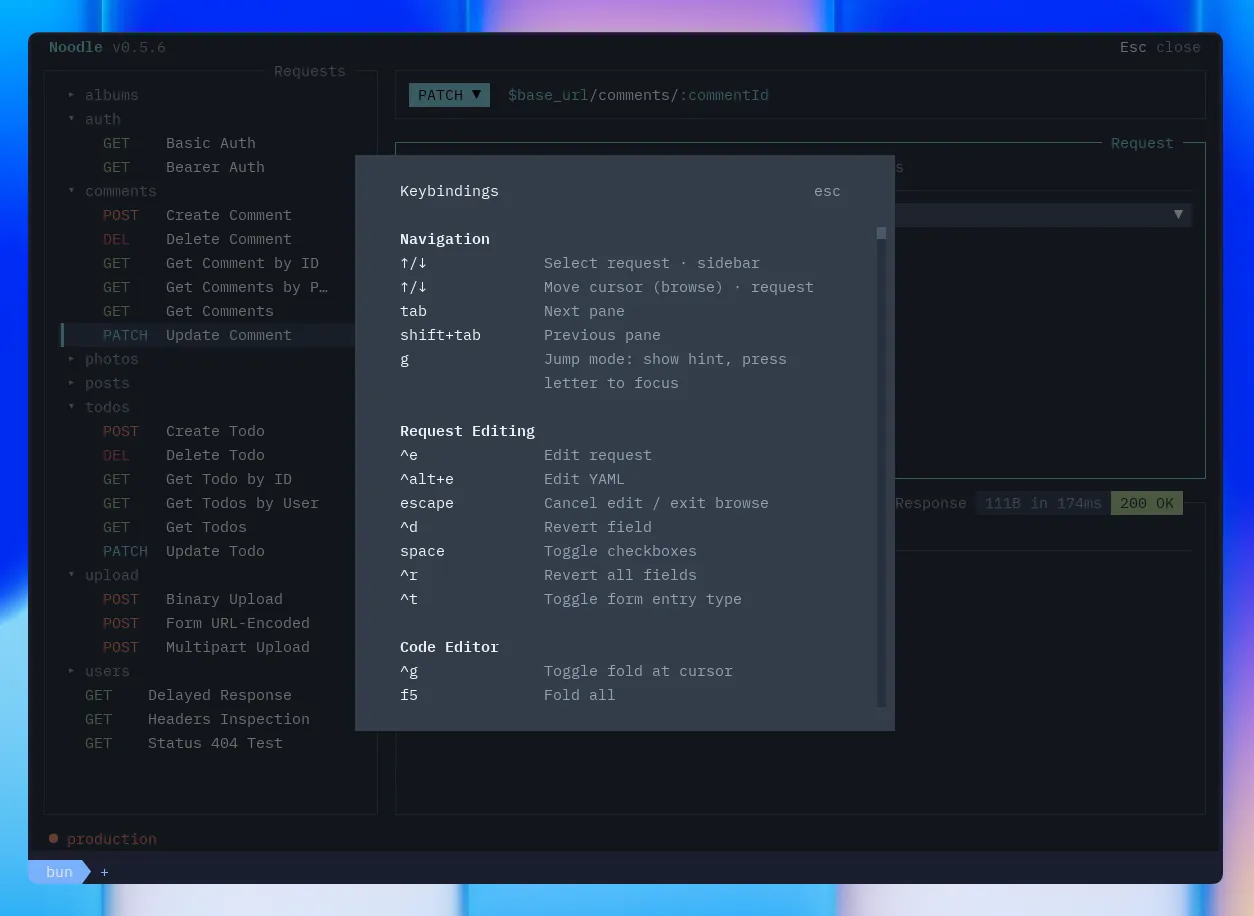
Press F1 in the TUI to open the help overlay with every keybinding listed, reflecting your current custom keybinds.
Global
Section titled “Global”| Key | Action |
|---|---|
Tab / Shift+Tab |
Cycle focus (sidebar → URL bar → request → response) |
Ctrl+Return / ^J |
Send request |
Ctrl+S |
Save request |
Ctrl+N |
New request |
Ctrl+K |
Clone request |
Ctrl+W |
Delete request |
Ctrl+P |
Open command palette |
Ctrl+F |
Find request or folder |
Ctrl+U |
Cycle environment |
F3 |
Open environment editor |
F4 |
Open Settings |
Ctrl+O |
Switch collection |
Ctrl+L |
Toggle layout (stacked / side-by-side) |
F2 |
Expand/collapse focused pane |
F5 |
Open collection Runner |
F1 |
Toggle help overlay |
Ctrl+T |
Open theme picker |
Ctrl+E |
Edit request in overlay |
Ctrl+Alt+E |
Edit request YAML in overlay |
Ctrl+Alt+B |
Copy text response body |
Ctrl+Alt+S |
Save live binary response file (Body tab focused) |
Ctrl+Alt+O |
Open that binary response after saving (Body tab focused) |
/ |
JSONPath in Source or text search in Visual (Body tab focused) |
m |
Toggle Source / Visual (Body tab focused) |
Ctrl+B |
Toggle the main sidebar (fixed) |
Ctrl+Z |
Undo all pending changes |
Ctrl+Alt+N |
New folder |
g |
Enter jump mode |
e |
Open searchable environment picker |
Ctrl+C |
Quit |
The main sidebar can also be toggled with Toggle Sidebar in the command palette. Tab skips it while hidden; g then s reopens and focuses it.
The command palette includes Import Collection and Export Collection alongside request and workspace actions. When the selected request’s effective auth is OAuth 2.0, it also includes actions to fetch or authorize, copy, and clear the current secure token.
Field Browse Mode
Section titled “Field Browse Mode”When the request pane is focused (field-level, not editing):
| Key | Action |
|---|---|
↑/↓/←/→ |
Navigate fields |
Home / End |
Jump to first / last field |
Return |
Enter edit mode |
Escape |
Exit browse mode |
Space |
Toggle header/param enabled |
Ctrl+T |
Toggle form entry text/file |
Ctrl+D |
Revert current field |
Ctrl+R |
Revert all fields |
Jump Mode
Section titled “Jump Mode”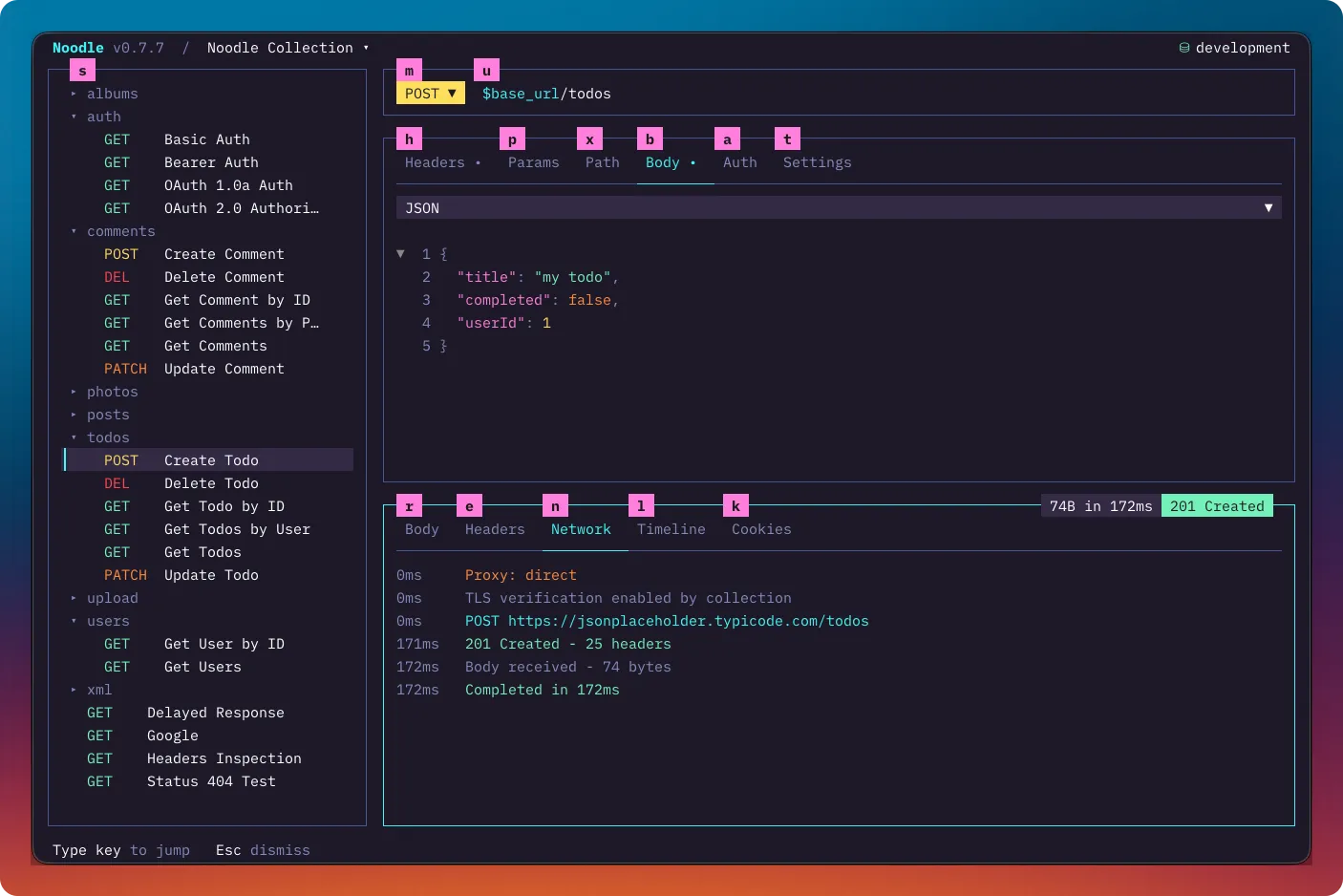
Press g to show letter hints on visible focusable elements. Press a letter
to jump focus to that element, or Esc to cancel. Non-matching keys are
swallowed while jump mode is active.
| Letter | Target |
|---|---|
s |
Sidebar pane |
m |
URL bar method selector |
u |
URL bar URL field |
h |
Request Headers tab |
p |
Request Params tab |
x |
Request Path tab |
b |
Request Body tab |
a |
Request Auth tab |
v |
Request Assert tab |
c |
Request Capture tab |
d |
Request Pre Script tab (when visible) |
f |
Request Post Script tab (when visible) |
j |
Request Tests tab (when visible) |
t |
Request Settings tab |
o |
Request optional-tab menu (+) |
r |
Response Body tab |
e |
Response Headers tab |
n |
Response Network tab |
l |
Response Timeline tab |
k |
Response Cookies tab |
i |
Response Results tab |
z |
Response Console tab (when logs make it visible) |
The v and c targets also reveal an empty Assert or Capture tab. Press
Return after focusing + to open its menu.
Folder targets
Section titled “Folder targets”When a folder is selected, these replace the request and response targets:
| Letter | Target |
|---|---|
s |
Sidebar pane |
m |
Folder General tab |
h |
Folder Headers tab |
a |
Folder Auth tab |
d |
Folder Pre Script tab (when visible) |
f |
Folder Post Script tab (when visible) |
j |
Folder Tests tab (when visible) |
o |
Folder optional-tab menu (+, when visible) |
y |
Folder Activity tab |
Environment editor targets
Section titled “Environment editor targets”When the environment editor is open, these are the available jump targets:
| Letter | Target |
|---|---|
s |
Environment sidebar |
m |
Environment name |
c |
Environment color |
v |
Environment variables |
Cookie jar targets
Section titled “Cookie jar targets”When the cookie jar is open, these are the available jump targets:
| Letter | Target |
|---|---|
s |
Domain sidebar |
c |
Cookie list |
Read-only Modes
Section titled “Read-only Modes”In browse or empty mode, you can inspect requests and use global UI actions but cannot edit or send. These keybindings are unavailable in read-only modes:
| Key | Action |
|---|---|
Ctrl+Return |
Send request |
Ctrl+S |
Save request |
Ctrl+N |
New request |
Ctrl+K |
Clone request |
Ctrl+W |
Delete request |
Ctrl+Alt+N |
New folder |
Ctrl+E |
Edit request |
Ctrl+Alt+E |
Edit YAML |
e |
Environment picker |
F3 |
Environment editor |
Use the command palette (Ctrl+P) to initialize the directory before
editing or sending.
Edit Mode
Section titled “Edit Mode”When editing a field value:
| Key | Action |
|---|---|
Return |
Commit edit |
Escape |
Cancel edit |
Tab |
Move to next field |
Code Editor
Section titled “Code Editor”When a code editor has focus (JSON/XML bodies, YAML, or inline JavaScript):
| Key | Action |
|---|---|
Ctrl+G |
Toggle fold at current line |
Ctrl+Space |
Script completion / parameter help |
Ctrl+Alt+F |
Format inline JavaScript or JSON request body |
Ctrl+Z |
Undo editable content |
Ctrl+Shift+Z |
Redo editable content |
Shift+Return |
Insert newline while editing |
Response bodies are read-only, but their JSON fold controls remain available. Bulk fold and unfold actions are configurable in Settings under Shortcuts and are unbound by default.
Script actions
Section titled “Script actions”| Key | Action | Binding ID |
|---|---|---|
Ctrl+Space |
Request script completion or parameter help | script_complete |
Ctrl+Alt+F |
Format active inline JavaScript or JSON body | editor_format |
Ctrl+Alt+X |
Open the selected external script in the configured editor | script_open_external |
Ctrl+Alt+R |
Show execution order for the active request script phase | script_execution_order |
These actions are also available in the command palette where applicable,
except completion, which runs in the focused script editor. Configure shortcuts
in global Keyboard settings or keybinds.yml.
Sidebar
Section titled “Sidebar”When the sidebar is focused:
| Key | Action |
|---|---|
Escape |
Return focus to sidebar from any pane |
← / → |
Switch visible folder pane tabs |
Response Pane
Section titled “Response Pane”When the response pane is focused:
| Key | Action |
|---|---|
← / → |
Switch visible response tabs, including Console when available |
↑ / ↓ |
Scroll active tab |
PgUp / PgDn |
Page scroll |
Return |
Expand/collapse timeline entry |
Binary Save/Open shortcuts can be changed with response_save_file and
response_open_file in keybinds.yml or F4 → Global → Keyboard. Open is
available only after that live response has been saved. See
Images and binary responses.
Help Overlay
Section titled “Help Overlay”When the help overlay is open:
| Key | Action |
|---|---|
↑ / ↓ or j / k |
Scroll |
PgUp / PgDn |
Page scroll |
Home / End |
Jump to top / bottom |
Env Editor
Section titled “Env Editor”When the environment editor is open:
| Key | Action |
|---|---|
Ctrl+S |
Save environment |
Ctrl+N |
Create new environment |
Ctrl+K |
Clone selected environment |
Ctrl+W |
Delete environment (with confirmation) |
Ctrl+D |
Delete current variable row |
↑ / ↓ |
Navigate rows or sidebar items |
Return |
Edit field or select environment |
Tab |
Switch between key and value columns |
Space |
Select/activate environment |
s |
Toggle secure storage for selected variable |
r |
Reveal or mask selected environment secret |
Escape |
Return to main view |
Cookie Jar
Section titled “Cookie Jar”Open Cookies from the command palette. The opening shortcut is unbound by
default and can be assigned with cookie_jar_open.
| Key | Action |
|---|---|
↑ / ↓ |
Select a domain or cookie |
Ctrl+N |
Add a cookie |
Ctrl+E |
Edit the selected cookie |
Return |
Expand or collapse the selected cookie |
Ctrl+Alt+B |
Copy the selected cookie as name=value |
/ |
Filter cookies; Escape clears and Return keeps the filter |
Ctrl+W |
Delete the selected domain |
Ctrl+D |
Delete the selected cookie |
Ctrl+Alt+W |
Clear the jar or reset unavailable storage with a backup |
r |
Retry unavailable storage |
Escape |
Close the cookie jar |
Customization
Section titled “Customization”Keybindings can be customized in ~/.config/noodle/keybinds.yml. Navigation and edit mode keys (tab, up, down, left, right, return, escape, shift+tab) and request_send are fixed and cannot be overridden.
Here is every customizable key with its default:
# Request# request_send is fixed and cannot be overridden (default: ctrl+return, fallback: ctrl+j)request_save: ctrl+srequest_new: ctrl+nrequest_clone: ctrl+krequest_delete: ctrl+wrequest_edit_overlay: ctrl+erequest_edit_yaml: ctrl+alt+efolder_new: ctrl+alt+n
# Environmentenv_cycle: ctrl+uenv_picker: eenv_editor: f3settings_open: f4env_save: ctrl+senv_secret: senv_reveal: renv_new: ctrl+nenv_clone: ctrl+kenv_delete: ctrl+w
# Cookies# cookie_jar_open is unbound by default; assign a key to enable itcookie_edit: ctrl+ecookie_delete: ctrl+wcookie_delete_domain: ctrl+dcookie_clear: ctrl+alt+wcookie_new: ctrl+ncookie_copy: ctrl+alt+b
# Appcommand_palette: ctrl+pcollection_switcher: ctrl+oglobal_undo_all: ctrl+zhelp_toggle: f1theme_picker: ctrl+tlayout_toggle: ctrl+lpane_expand: f2response_copy_body: ctrl+alt+bresponse_query: /response_body_view: mrequest_find: ctrl+fjump_mode: g
# Browsebrowse_delete: ctrl+dbrowse_revert_all: ctrl+rbrowse_toggle_form_type: ctrl+t