

Find requests
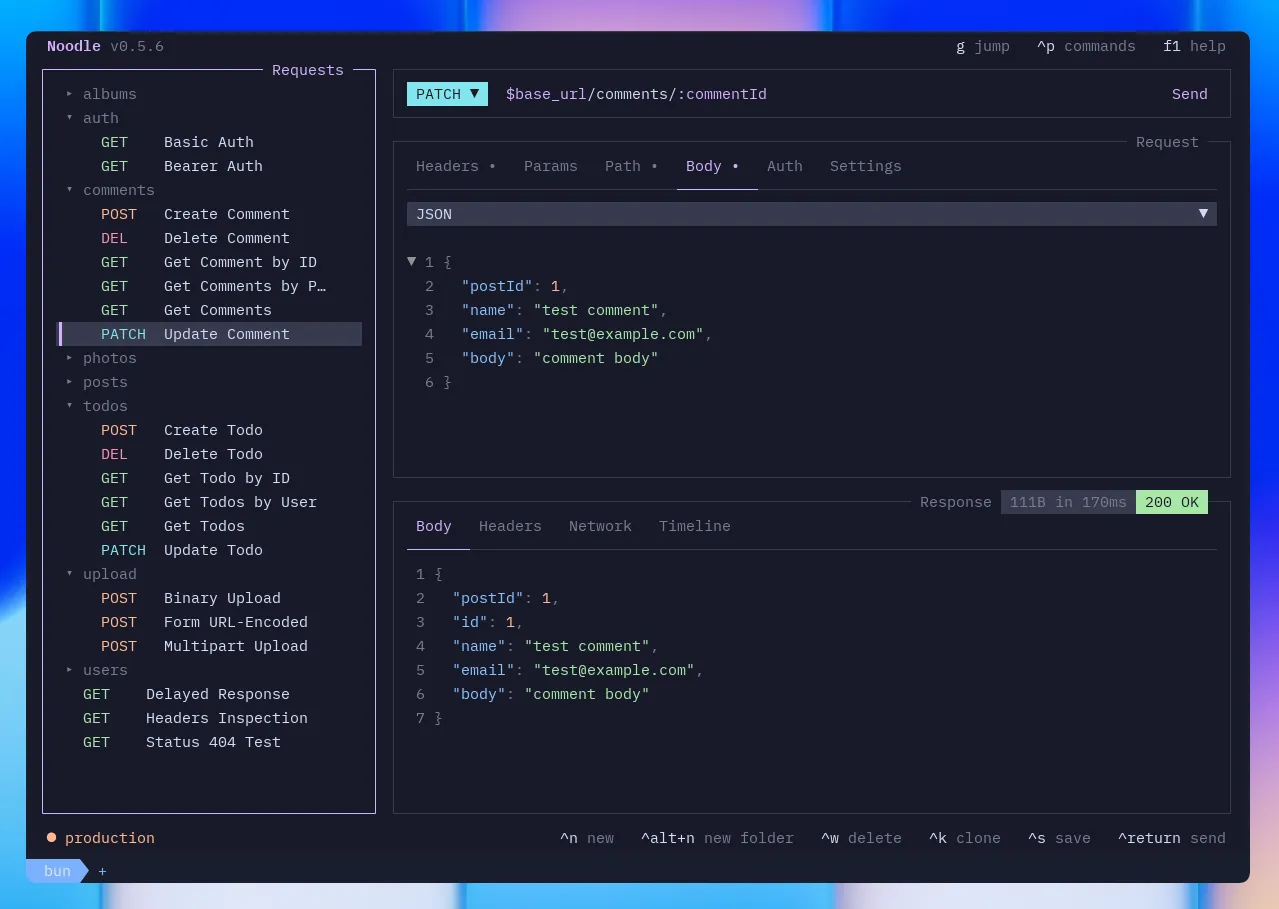
The sidebar is the control center. Select a request or folder, then act on it.
Find and open a request
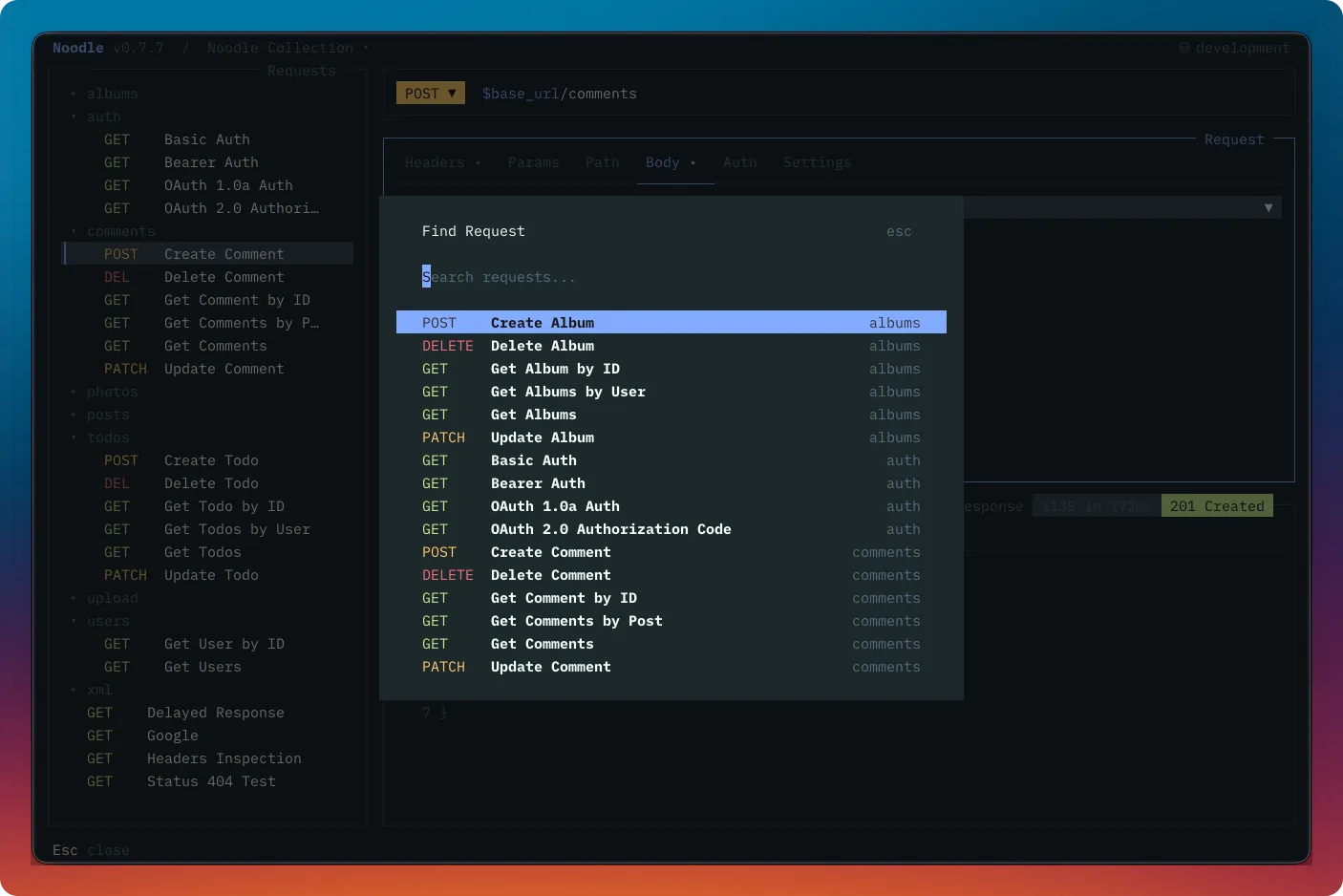
Section titled “Find and open a request”In an open collection, press Ctrl+F, type part of a request name, ID, or URL, and press Return to select a result. The sidebar reveals its folder and the request pane shows its contents. Press Ctrl+O first if the request belongs to another registered collection.
Continue with Create and send requests or use the tree navigation below.
Navigation
Section titled “Navigation”| Key | Action |
|---|---|
| ↑/↓ | Move between items |
| → | Expand folder |
| ← | Collapse folder |
| Space | Toggle folder open/closed |
| Return | Select request |
| Tab / Shift+Tab | Move focus to another pane |
| Escape | Return focus to sidebar from anywhere |
Requests
Section titled “Requests”Requests show a method badge (GET/POST/etc.) and a dirty indicator (●) when there are unsaved changes.
| Key | Action |
|---|---|
| Ctrl+N | New request: opens a modal for name, folder, method, and URL |
| Ctrl+K | Clone selected request |
| Ctrl+E | Edit request name, method, URL, or move to another folder |
| Ctrl+Alt+E | Edit raw YAML in the code editor |
| Ctrl+W | Delete selected request with confirmation |
| Ctrl+Return | Send the selected request |
| Ctrl+S | Save current request to disk |
Mouse Interaction
Section titled “Mouse Interaction”Click a request or folder to select it and focus the sidebar. Right-click a request or folder to open its context menu. You can also click tabs, fields, controls, and overlay actions throughout the TUI; hover styling indicates available mouse actions.
In the environment editor, right-click an environment in its sidebar to open the save, create, clone, and delete menu for that environment.
Finding Requests and Folders
Section titled “Finding Requests and Folders”Press Ctrl+F to search every request and folder in the collection.
The finder matches names, IDs, and resolved URLs with fuzzy matching.
When an environment is active, URL results include values after
$VARIABLE references are resolved. Choose a result with Return to
reveal and select it.
Collection Switcher
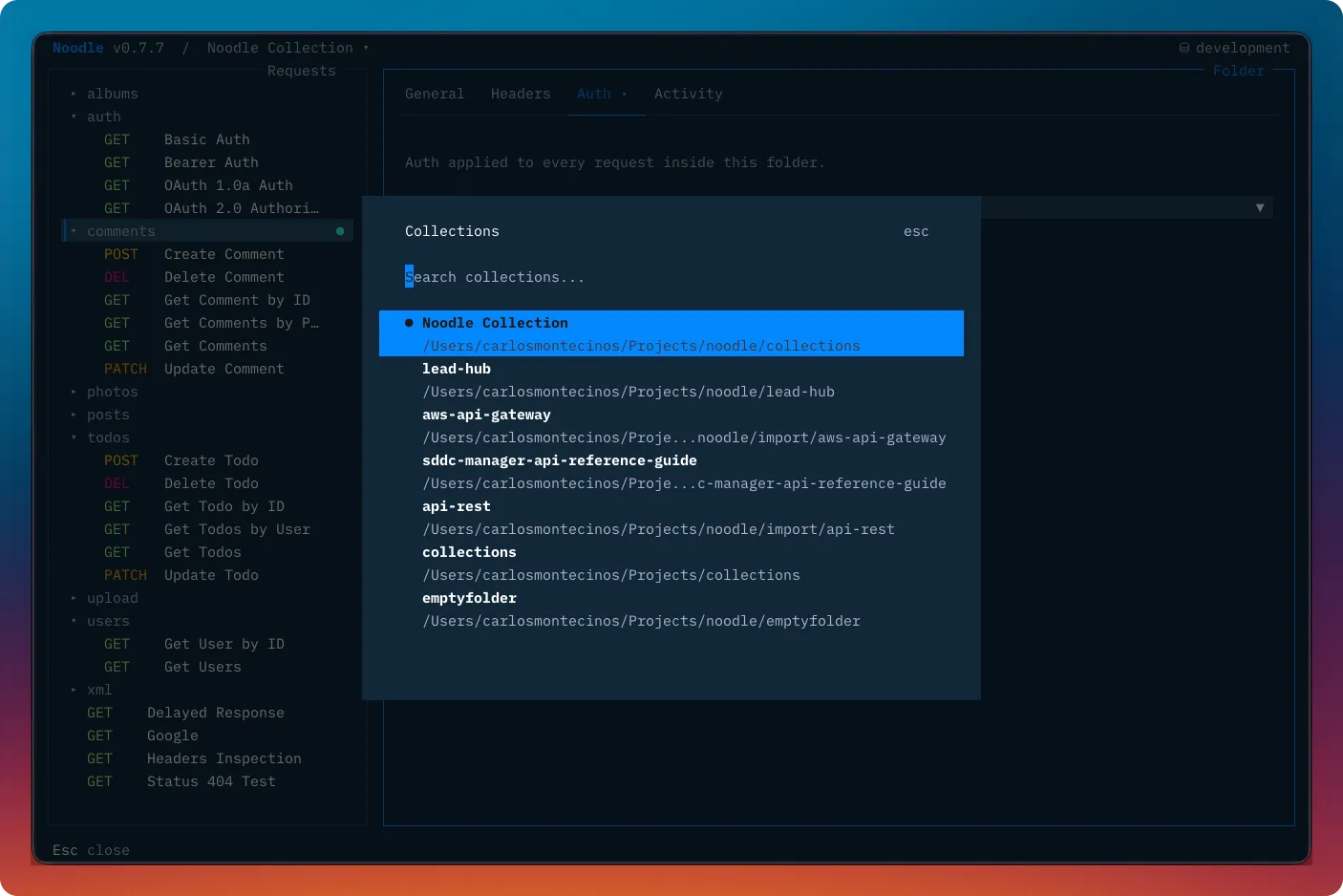
Section titled “Collection Switcher”Press Ctrl+O to switch between previously-used collection directories
at runtime. Collections are listed in most-recently-used order and persisted
to ~/.config/noodle/config.yml. You can also click the collection path in
the header to open the switcher.
Folders
Section titled “Folders”| Key | Action |
|---|---|
| Ctrl+Alt+N | New folder |
| Ctrl+W | Delete folder and all requests inside |
| ←/→ | Switch folder pane tabs (General / Headers / Auth / Activity) |
| Ctrl+Alt+E | Edit raw folder.yml in the code editor |
Folder Pane
Section titled “Folder Pane”When a folder is selected, the folder pane shows four tabs:
- General: folder name and sort order
- Headers: headers inherited by child requests
- Auth: auth config inherited by child requests
- Activity: per-request stats (OK%, avg time, last sent)
Headers and auth set on a folder apply to all requests inside it.
Environments
Section titled “Environments”Press e to search and activate an environment, or click the environment indicator in the header. Press F3 to open the full environment editor; Escape returns to the main view.