

Code editor
noodle includes a built-in code editor with Tree-sitter syntax highlighting and code folding for JavaScript scripts and tests, JSON and XML bodies, and YAML request files.
JSON Body Editor
Section titled “JSON Body Editor”JSON request bodies stay visible in the editor while browsing and editing.
Press Return on the body field to edit it. The editor provides syntax
highlighting with line numbers. Variable references ($var) are highlighted
with color-coded states: resolved variables in your active theme’s primary
color, and missing variables in your theme’s error color.
Invalid JSON shows an inline validation notice with a source line and column. When environment variables are substituted, errors still map back to the request source and identify an invalid variable value when applicable.
JavaScript script and test editors
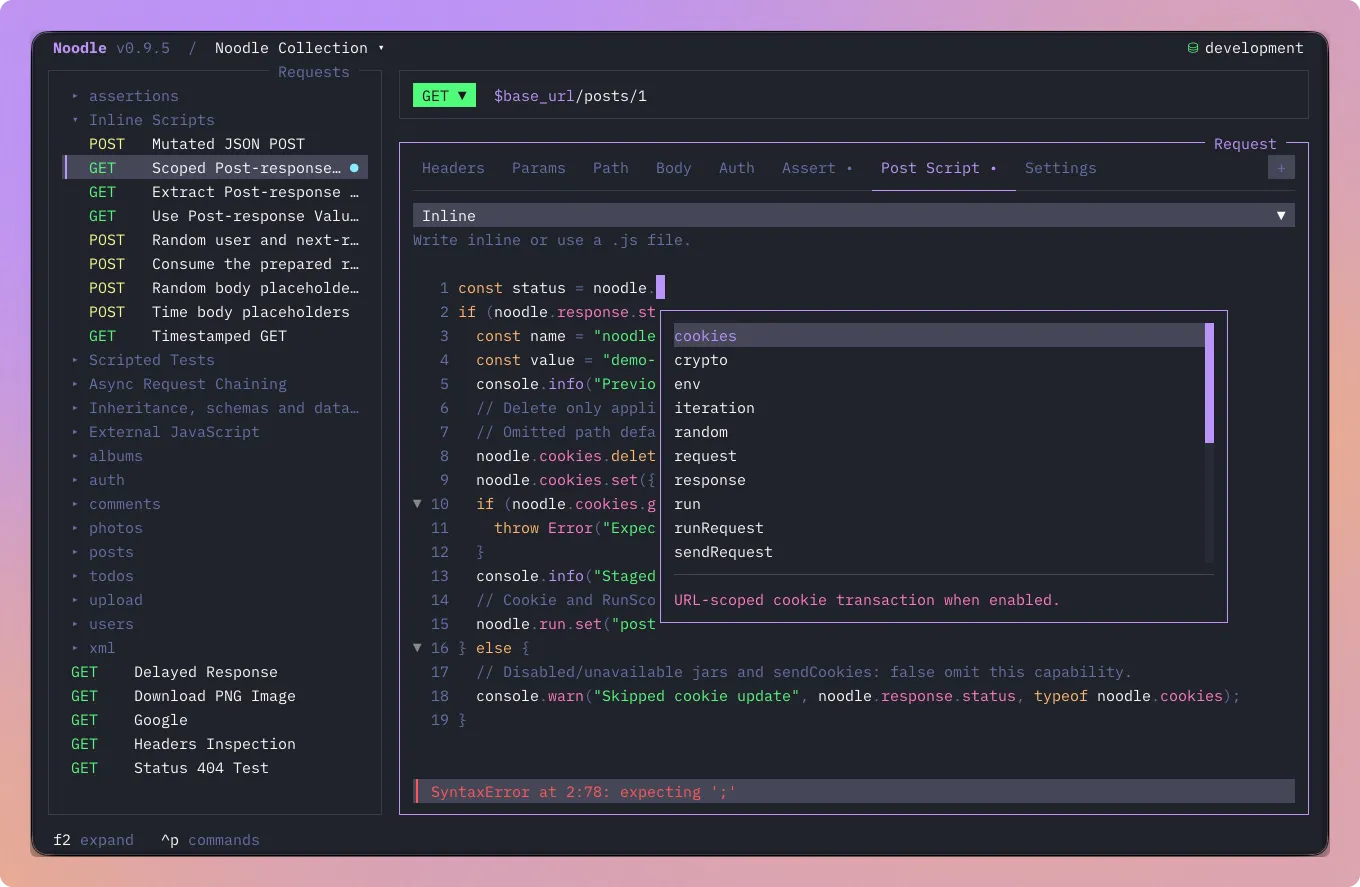
Section titled “JavaScript script and test editors”Request and folder Pre Script, Post Script, and Tests tabs, plus Collection Settings → Scripts, use the same editor with JavaScript syntax highlighting, line numbers, scrolling, folding, and undo/redo. Reveal empty request or folder tabs from +. Use Return to edit; Escape leaves the editor and Shift+Tab moves back toward the source selector.
While editing a request script or test, the Send button commits the current draft and sends without moving focus out of the request pane. Ctrl+Return also sends from these editors.
Completion understands the current phase’s noodle.* APIs, JavaScript built-ins,
local symbols, active environment keys, and saved request IDs. Suggestions show
method descriptions and signatures; parameter help follows the current argument.
Press Ctrl+Space to request assistance explicitly. In external-file mode,
the path field completes collection-relative directories and .js files.
Syntax errors and advisory semantic diagnostics report source positions without running the code. Semantic checks can identify unknown APIs, unavailable host globals, invalid argument types, and mutations forbidden in the current phase. They do not replace runtime validation. TUI sends and the Runner block on syntax errors in applicable sources before HTTP; CLI execution remains unchanged.
See Scripting for save behavior, external-editor access, and inherited execution order.
XML Body Editor
Section titled “XML Body Editor”XML request bodies use the same editor with Tree-sitter XML highlighting, code folding, line numbers, and variable completion. Noodle does not reformat or schema-validate XML; it sends the substituted source unchanged.
Response Body Viewer
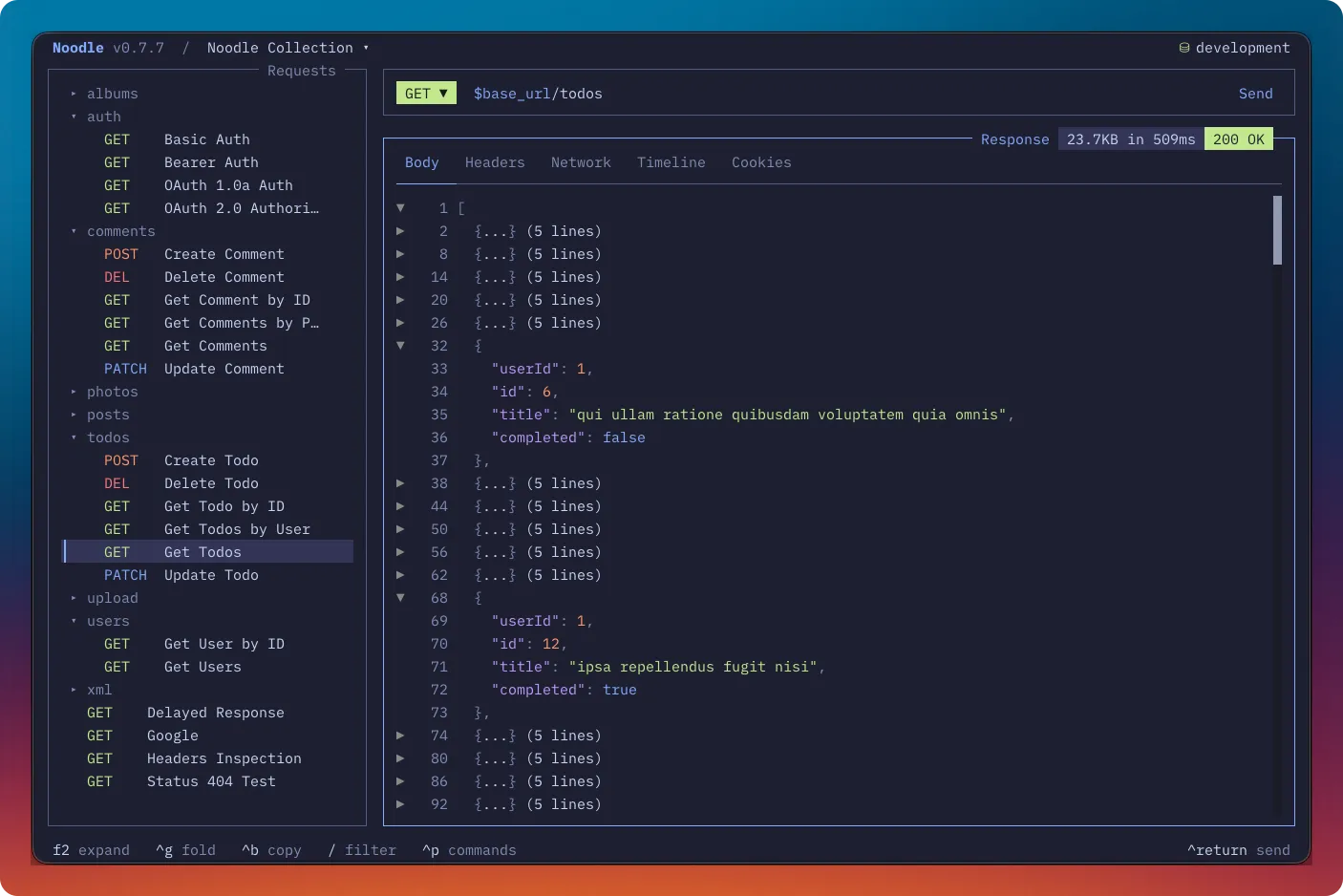
Section titled “Response Body Viewer”Response bodies use the same editor in read-only mode. JSON responses support keyboard and gutter folding, while XML responses use XML highlighting. The viewer keeps original source line numbers beside folded rows and shows a themed scrollbar when the body overflows. Copying across a folded row returns the complete original source rather than the collapsed text.
YAML Editor Overlay
Section titled “YAML Editor Overlay”Press Ctrl+Alt+E to edit the raw YAML of the selected request or
folder.yml. The editor validates the appropriate file type before saving.
It provides:
- Syntax highlighting for YAML keys, values, strings, and comments
$variablehighlighting (resolved and missing)- Code folding for nested blocks
- Variable autocompletion
Editing pairs
Section titled “Editing pairs”Typing an opening {, [, (, quote, or < inserts its closing pair and
keeps the cursor between them. With a selection, the editor wraps the selected
text. Typing a closing character over an existing one moves past it instead of
inserting another.
Formatting
Section titled “Formatting”With an inline JavaScript editor or JSON request body active, press
Ctrl+Alt+F or choose Format Code from the command palette. Formatting
preserves source values, including JSON number tokens, duplicate keys, and
unevaluated $random and $time placeholders.
Enable F4 → Global → Behavior → Format on save to format inline scripts, tests, and JSON bodies through normal request, folder, and collection saves. It is off by default. External files, XML, and invalid source remain unchanged. Collection scripts save when you leave their editor. Visible formatting is applied after a successful save; failed saves retain the draft, and a formatting service failure warns while allowing unformatted source to save.
Code Folding
Section titled “Code Folding”Fold and unfold blocks of code to focus on what matters:
| Key | Action |
|---|---|
Ctrl+G |
Toggle fold at the current line |
Ctrl+Z |
Undo editor change |
Ctrl+Shift+Z |
Redo editor change |
Bulk fold and unfold actions are configurable in Settings under Shortcuts and are unbound by default. F5 opens the collection Runner.
When you edit inside a folded region, the fold auto-expands. Fold state is preserved across content changes.
Line Operations
Section titled “Line Operations”Shift+Return inserts a newline in the code editor. Standard Return
behavior (commit edit, send request, etc.) is preserved; use Shift+Return
when you need multi-line input.
Autocompletion
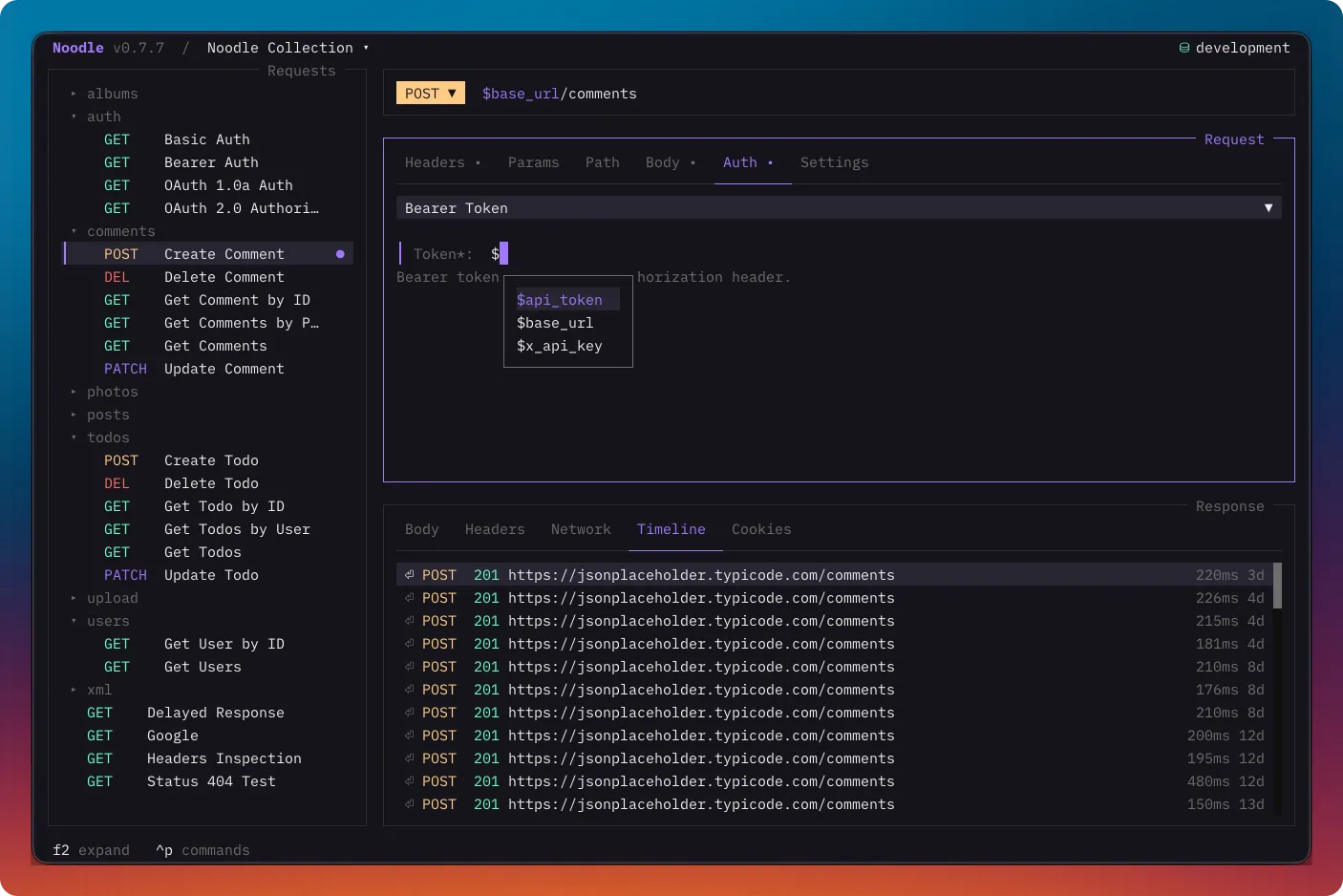
Section titled “Autocompletion”Type $ in a request body or YAML editor to trigger the variable autocompletion popup.
Navigate suggestions with up/down, accept with Tab or Return,
dismiss with Escape, or click a suggestion. The scrollable menu matches
text within variable names and highlights matches. Exact completed tokens stay
intact.
In the request body editor, $random. and $time. also suggest generated
values, with descriptions, signatures, and examples. Methods requiring arguments
insert parentheses and place the cursor inside. Existing arguments are preserved.
See body templates
for supported fields and JSON quoting. Validation and completion never generate
data; JSON validation uses safe placeholders to check the prepared structure.
Technical Details
Section titled “Technical Details”The editor registers Tree-sitter parsers for JavaScript, JSON, YAML, and XML. It uses
Tree-sitter highlights when available, then falls back to local JSON or YAML
tokenizers when parsing fails or yields no highlights. This fallback keeps
$variable references usable in JSON bodies before send-time substitution.
Syntax highlight colors are synced with your active theme. Changing themes
with Ctrl+T instantly updates the editor’s colors.